Table of Contents
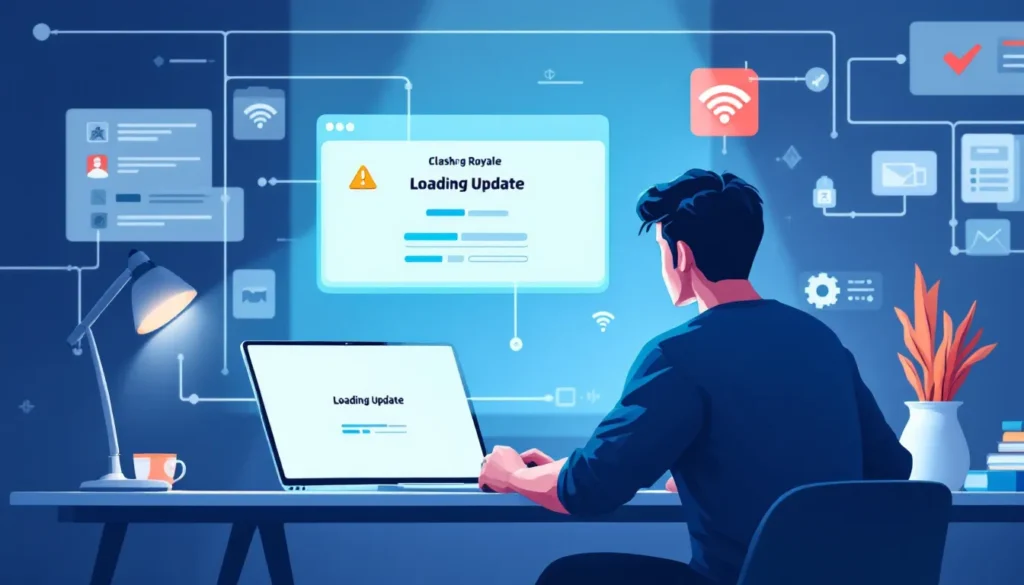
ToggleThere’s nothing worse than loading up Clash Royale for a quick ladder push, only to hit a wall: the app’s stuck on the update screen, spinning endlessly while your crown chest timer counts down. Whether you’re waiting for the latest balance changes or a seasonal reset, a hung update will lock you out of battles indefinitely. The frustrating part? It’s usually fixable in minutes with the right approach. This guide walks you through the most effective solutions, from basic troubleshooting to advanced fixes, so you can get back to climbing trophies and crushing opponents.
Key Takeaways
- Clash Royale stuck on updating is typically caused by network connectivity issues, insufficient storage space, or corrupted app cache—all solvable in minutes with the right troubleshooting approach.
- Force stop and restart the app, check your internet connection, and restart your device to resolve stuck update issues in roughly 60% of cases.
- Clear your app cache without losing progress by going to Settings > Apps > Clash Royale > Clear Cache on Android, or by offloading the app on iOS through Settings > General > iPhone Storage.
- Free up at least 500 MB to 1 GB of storage space on your device to ensure smooth updates, prioritizing deletion of unused apps, old photos, and streaming app caches.
- Link your Clash Royale account to Supercell ID before reinstalling the app to safeguard your gems, cards, and trophies on Supercell’s servers.
- If the issue persists after basic fixes, update your operating system, disable any active VPN or proxy settings, and contact Supercell Support with your player tag, device model, and screenshots for manual assistance.
Why Is Clash Royale Stuck on Updating?
Before jumping into fixes, it helps to understand what’s actually happening when an update hangs. Clash Royale updates occur regularly, both for seasonal balance shifts and emergency patches, and multiple factors can trip up the process.
Network Connectivity Issues
Network problems are the most common culprit. If your connection drops mid-download, gets throttled, or experiences packet loss, the update will stall. Wi-Fi is especially prone to this: interference from other devices, distance from the router, or signal weakness can cause the app to lose its download thread. Mobile data isn’t immune either, moving between cell towers or entering a weak signal zone can interrupt the update process. The app will often sit frozen, retrying silently in the background but never actually progressing.
Insufficient Storage Space
Clash Royale updates typically require between 100–300 MB of free space, depending on the patch size. If your device has less than 500 MB available, the installation will fail or hang indefinitely. Modern phones accumulate photos, videos, and cached data quickly, and users often don’t notice when they’ve approached the storage limit. The app can’t expand its footprint without that buffer, so it gets stuck in a pseudo-waiting state.
App Cache and Data Corruption
Clash Royale stores temporary files and game state data in its cache. If this cache becomes corrupted, often from forced closures, crashes during previous updates, or incomplete downloads, the app will struggle to write new update files. The app tries to reconcile conflicting data, times out, and hangs on the update screen. This is especially likely if you’ve force-stopped the app multiple times or experienced crashes before.
Server-Side Problems
Occasionally, the issue isn’t on your device. Supercell’s servers can experience momentary hiccups, rate-limiting issues, or geographic server outages. If their content delivery network (CDN) is slow or unresponsive, downloads crawl to a halt. These situations usually resolve themselves within hours, but they can feel like a device problem.
Quick Fixes to Try First
Start with these basic steps. They take under five minutes and solve the issue in roughly 60% of cases.
Force Stop and Restart the App
This is the reset button for app-level issues. Here’s how:
- Go to Settings > Apps (or Application Manager on some Android devices)
- Find and tap Clash Royale
- Select Force Stop
- Wait 10 seconds, then re-open the app from your home screen or app drawer
For iOS, it’s even simpler: swipe up from the bottom of the screen (or swipe down from the top-right corner on newer iPhones) and force-close Clash Royale by swiping its card up. Then tap the app icon to reopen it.
This clears any temporary app state and forces it to start fresh. The update will either resume cleanly or you’ll discover if there’s a deeper issue.
Check Your Internet Connection
Switch from Wi-Fi to mobile data (or vice versa) and try again. This tells you whether it’s a connectivity issue or something device-specific.
- If it works on mobile data but not Wi-Fi, your router or Wi-Fi signal is the problem, move closer to the router or restart it.
- If it fails on both, move to the next fix.
- Test your connection on another app (like downloading a file or streaming video) to confirm it’s actually working.
Restart Your Device
Power off your phone completely and turn it back on. This flushes RAM, resets network connections, and clears any OS-level glitches. After restarting, open Clash Royale. Your device should reconnect cleanly to the update servers.
Clear App Cache Without Losing Progress
If the quick fixes don’t work, clearing the app cache often solves corruption issues. The crucial detail: clearing cache will not delete your game progress if your account is linked to Supercell ID, Google Play (Android), or Game Center/Apple ID (iOS). Your troops, trophies, and cards stay safe.
How to Clear Cache on Android
- Open Settings > Apps > Clash Royale
- Tap Storage and Cache (or just Storage on some versions)
- Select Clear Cache
- Confirm the action
- Do not tap “Clear Storage” or “Clear Data”, that would delete your local files
- Close Settings and reopen Clash Royale
The app will redownload necessary cache files when it launches, and you’ll still be logged into your account.
How to Clear Cache on iOS
iOS handles caching differently and doesn’t offer a direct “clear cache” option in Settings. Instead:
- Go to Settings > General > iPhone Storage (or iPad Storage)
- Find Clash Royale in the list and tap it
- Tap Offload App (do not tap “Delete App”, this distinction matters)
- When prompted, choose Offload (this removes the app but saves your data)
- Return to the App Store, search for Clash Royale, and tap Install
- Once installed, open the app, it will sign you back in automatically
Offloading clears the cache while preserving your saved data locally. When you reinstall, the app reconnects to your account and syncs your progress from Supercell’s servers.
Free Up Storage Space on Your Device
If your device is nearly full, the update will fail silently. You need at least 500 MB to 1 GB of free space for a smooth update.
Checking Available Storage
Android: Settings > Storage > Available Space. Look for the number in the “Available” section.
iOS: Settings > General > iPhone Storage (or iPad Storage). The bar at the top shows available capacity.
If you have less than 500 MB free, you need to delete something. The good news is you don’t need to free up a huge amount, even 700 MB is usually enough.
Deleting Unused Apps and Files
Start with the easy targets:
- Old games and apps you haven’t opened in months. Go to App Store (iOS) or Play Store (Android), find your library, and uninstall unused titles. A single large game like Fortnite or PUBG can free up 5–10 GB.
- Photos and videos. Use your phone’s native Photos/Gallery app to delete blurry shots or duplicates. If you’re worried about losing them, back them up to Google Photos or iCloud first, then delete locally.
- Downloads folder. Check your Files app (Android) or Files app (iOS) and delete old downloads.
- Streaming and social media cache. YouTube, TikTok, and Instagram build up massive caches. Go to Settings > Apps > [App Name] > Storage > Clear Cache for each one.
After freeing up space, attempt the Clash Royale update again. You should have breathing room now.
If you’re consistently low on storage, it’s worth investing in cloud backup or upgrading to a device with more capacity. But for an immediate fix, this approach buys you room.
Reinstall Clash Royale Properly
If none of the above worked, a complete uninstall and fresh install often resolves stubborn update issues. The key is making absolutely sure your account is secure before you delete the app.
Safeguard Your Account Before Reinstalling
Before uninstalling, link your Clash Royale account to Supercell ID (if you haven’t already). This is your safety net.
- Open Clash Royale
- Tap the Settings icon (gear) in the top-right corner of the main menu
- Scroll to Account and tap Connect
- Select Supercell ID and create or log in to your account
- Confirm the linking
Alternatively, iOS players can rely on Game Center (link in Settings > Account) or iCloud, and Android players can use Google Play Games. But Supercell ID is the most reliable across both platforms.
Once linked, your entire account, gems, cards, trophies, everything, is backed up to Supercell’s servers. You can reinstall and log back in instantly.
Complete Uninstall and Fresh Install Steps
- Uninstall the app: Long-press Clash Royale on your home screen (Android) or use Settings > Apps > Clash Royale > Uninstall (both platforms). Confirm you want to delete it.
- Restart your device: Power it off and back on. This ensures no residual files linger.
- Reinstall from the app store: Open Play Store (Android) or App Store (iOS) and search for Clash Royale. Tap Install.
- Open the app: Let it download and install fully. On the login screen, tap your linked account (Supercell ID, Google Play, Game Center, etc.) and sign in.
- Verify your progress: Your account, trophies, and card collection should be exactly as you left them.
This approach eliminates any corrupted local files and gives Clash Royale a clean slate. Updates should proceed normally.
Advanced Troubleshooting for Persistent Issues
Still stuck? These more technical fixes target deeper device-level problems.
Update Your Device’s Operating System
Outdated OS versions sometimes conflict with app updates. Check for pending OS updates:
Android: Settings > About Phone > System Update (or Advanced > System Update). If an update is available, download and install it on Wi-Fi with your battery above 50%.
iOS: Settings > General > Software Update. Download and install any available update.
OS updates often improve app compatibility and fix networking bugs. After updating, retry Clash Royale.
Disable VPN and Proxy Settings
VPNs and proxy servers can interfere with app store connectivity and update downloads. Supercell’s servers may also rate-limit or block requests from VPN IP addresses.
Android: Settings > Network & Internet > VPN. Toggle off any active VPN or proxy.
iOS: Settings > VPN & Device Management. Disable any VPN profiles.
Try the update without a VPN. If it works, you’ve found your culprit. You can re-enable the VPN after the update completes.
Check App Store Connectivity
Sometimes the app store itself is the bottleneck. Test its connection:
- Open the Play Store (Android) or App Store (iOS)
- Tap your profile icon and check for any pending updates
- Try updating another app, a small, lightweight one
- If that update stalls too, the app store is the issue
If the app store is sluggish, try again later. You can also sign out of your Play Store/App Store account and sign back in to refresh the connection. This sometimes clears credential-related bottlenecks.
When to Contact Supercell Support
If you’ve worked through all the steps above and Clash Royale is still stuck, it’s time to escalate to Supercell. They have access to account diagnostics and can sometimes manually push an update or reset your installation state on their end.
Gathering Necessary Information
Before submitting a ticket, gather these details. Supercell will ask for them:
- Your in-game username and player tag (found in Settings > Profile)
- Device model and OS version (e.g., “Samsung Galaxy S23 on Android 14” or “iPhone 14 on iOS 17.2”)
- Clash Royale version number (Settings > About, or check your app store listing)
- Approximate date the issue started
- Steps you’ve already tried (this saves them time and shows you’re not just guessing)
- Screenshots of the stuck update screen (optional but helpful)
Having this ready makes your support ticket more likely to be resolved quickly.
How to Submit a Support Ticket
- In-game: Open Settings > Help and Support (or Contact Us)
- Tap Contact Support or Submit a Ticket
- Choose your issue category: select Technical Issue or App Not Working
- Fill in the subject line: “Clash Royale stuck on update screen”
- In the description, paste the details you gathered above
- Attach any screenshots
- Submit
Supercell’s support team typically responds within 24–48 hours. Be patient and polite: they deal with dozens of tickets daily. If your first response doesn’t solve it, reply with additional details and they’ll dig deeper.
In rare cases where your account is genuinely corrupted on Supercell’s end, they can manually migrate your account data to a fresh installation.
Conclusion
Getting Clash Royale stuck on an update is frustrating, but it’s almost always fixable. Most cases resolve with a force stop and restart, while cache clearing and storage management handle the rest. If you’re dealing with a persistent issue, a full reinstall paired with proper account linking guarantees a fresh start.
The broader lesson: stay on top of OS updates, maintain at least 500 MB of free space, and enable automatic updates so patch day doesn’t derail your play session. If you’re chasing Clash Royale Top Decks or grinding ladder, the last thing you need is app issues stealing your time.
For Clash Royale strategy guides beyond troubleshooting, Champion Gamers Lab covers everything from 2v2 Clash Royale Decks to Path of Legends progression. And if you’re building your deck from scratch, understanding card synergies and meta shifts is where the real grind begins. Get the app running, get back in the arena, and start climbing.


